Workspace API Key Feature Description
1. Function Overview
1.1 What is an API Key?
Workspace API Key is an authentication credential for API calls that belongs to the Workspace, mainly used to call the models and computing power resources within the platform through the interface.
This credential has no direct subordinate relationship with the account system, only belongs to a single Workspace, and naturally has the permission to call all model resources within the Workspace after creation. It is the core authentication method for project-level and business-level call scenarios.
An API Key is essentially a project-level shared credential tied to a Workspace. All sub-accounts granted access to the Workspace and authorized to use the API Key feature may view and utilize this key. You must treat it as a "team-shared password": distribute it only within controlled environments and rotate it regularly. Requests authenticated via an API Key cannot record the sub-account’s access key information. If granular permission control or revenue allocation tracking is required, we recommend prioritizing the sub-account Access Key paired with Workspace authorization. This setup enables a dedicated key per individual with adjustable access permissions.
1.2 Core Role
-
API Call Authentication: As a legitimate identity credential, call all model inference and resource management API services open to the platform.
-
Resource Boundary Isolation: Key invocation permissions are inherently bound to the associated Workspace, preventing cross-workspace resource invocation, eliminating cross-project resource access at the mechanism level, and ensuring data and business security.
-
Multi-scenario decentralized distribution: Under a single Workspace, it supports creating multiple sets of API Keys, which can be separately assigned to different business systems, development/test/production environments, and external partners for use; keys are independently managed without interference and can be individually revoked as needed.
-
Precise Cost Aggregation: All call fees generated through API Key are uniformly aggregated to the dimension of the associated Workspace, supporting independent billing calculations by project and Line of Business.
2. Creation and Management
2.1 New Workspace
-
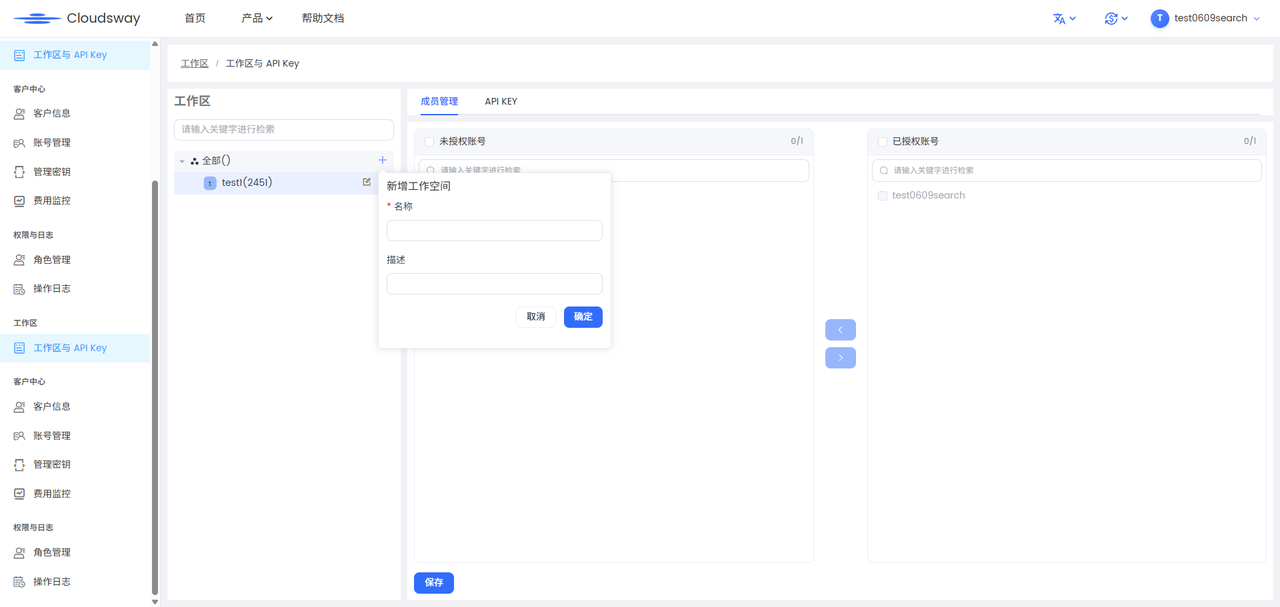
Log in to the Console, and navigate to the \<b>[Workspace]\</b> - \<b>[Workspace and API Key]\</b> page in the left sidebar.
-
Click the "+" button above the workspace list on the left to pop up the [New Workspace] dialog box.
-
Fill in the required field "Name", and you can supplement the information in "Description".
-
Click [OK] to complete the creation, and the new workspace will appear in the left list.
2.2 Authorize an account for the workspace
-
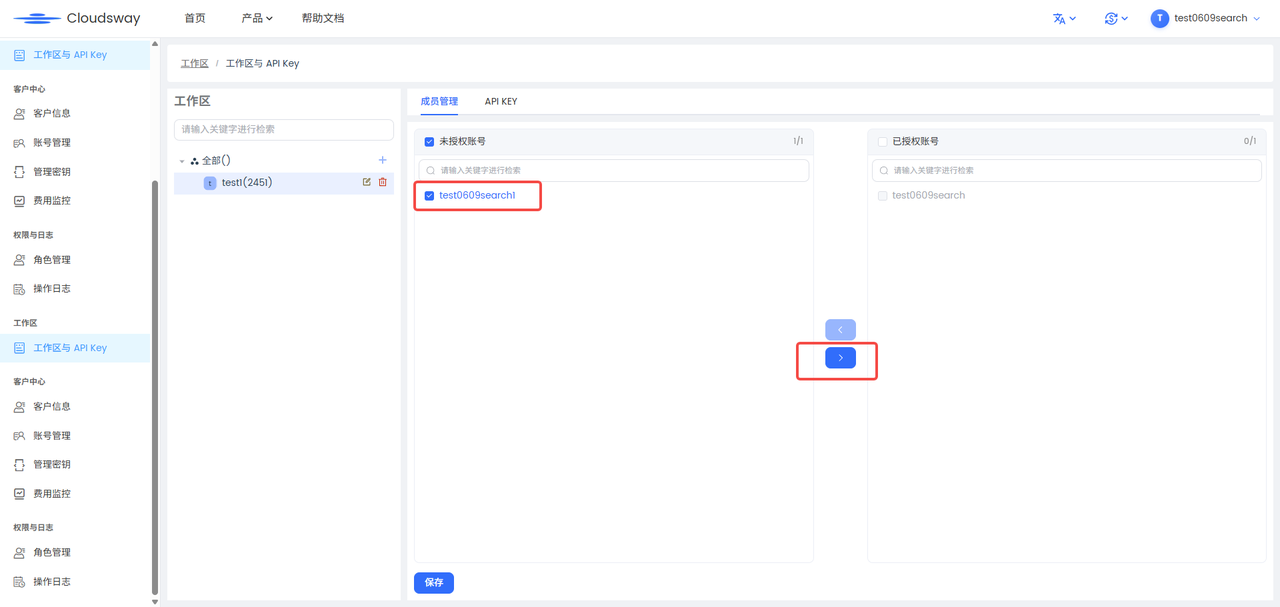
Select the target workspace from the list in the left workspace area, then switch to the [Member Management] tab on the right.
-
Check the user accounts that need to be authorized from the "Unauthorized Accounts" list, click the middle arrow button, and move the accounts to the "Authorized Accounts" list.
-
After confirming that the authorized account is correct, click the [Save] button at the bottom of the page to complete the account authorization.
2.3 Configure API Key
Create API Key for MaaS Product Line
-
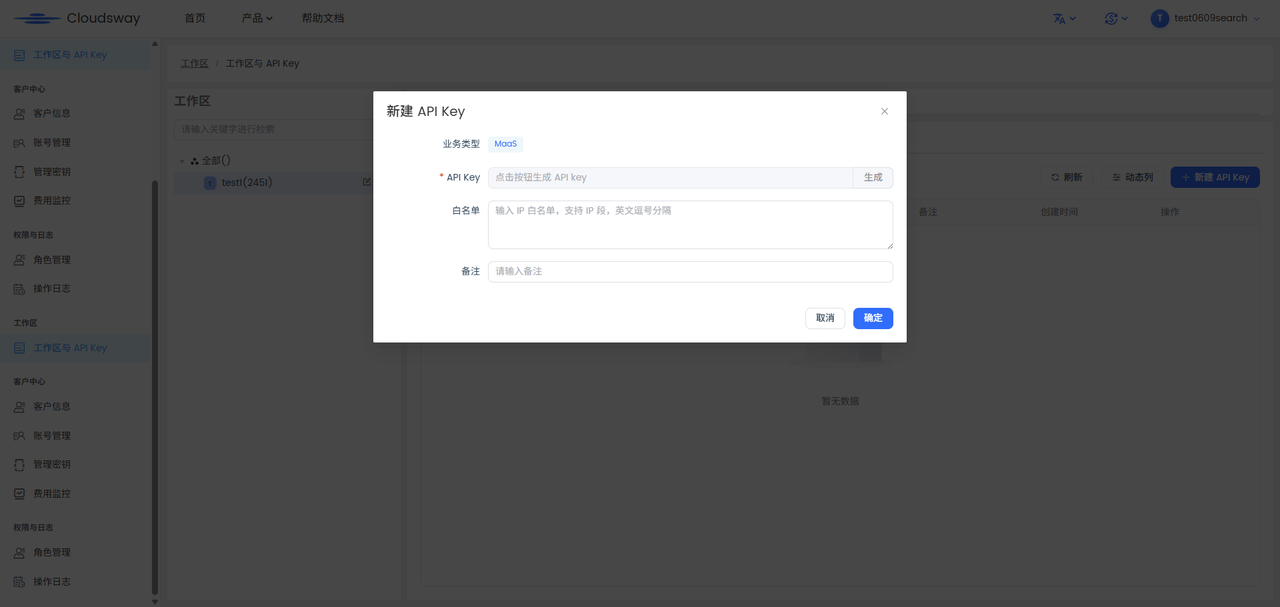
Select the target workspace, switch to the [API KEY] tab on the right, and then select the [MaaS] sub-tab.
-
Click the [New API Key] button in the upper right corner, and a creation pop-up window will appear.
-
Configuration Parameters:
-
Business Type: Fixed as "MaaS"
-
API Key: Click the "Generate" button to automatically generate a key
-
Allowlist: Enter the IP allowlist (supports IP ranges, separated by English commas, optional)
-
Note: Fill in the purpose description (optional)
-
-
Click [OK] to complete the creation, and the API Key will be displayed in the list.
-
Multiple API Keys can be created under the same workspace.
Search Product Line API Key Creation
Single Creation
-
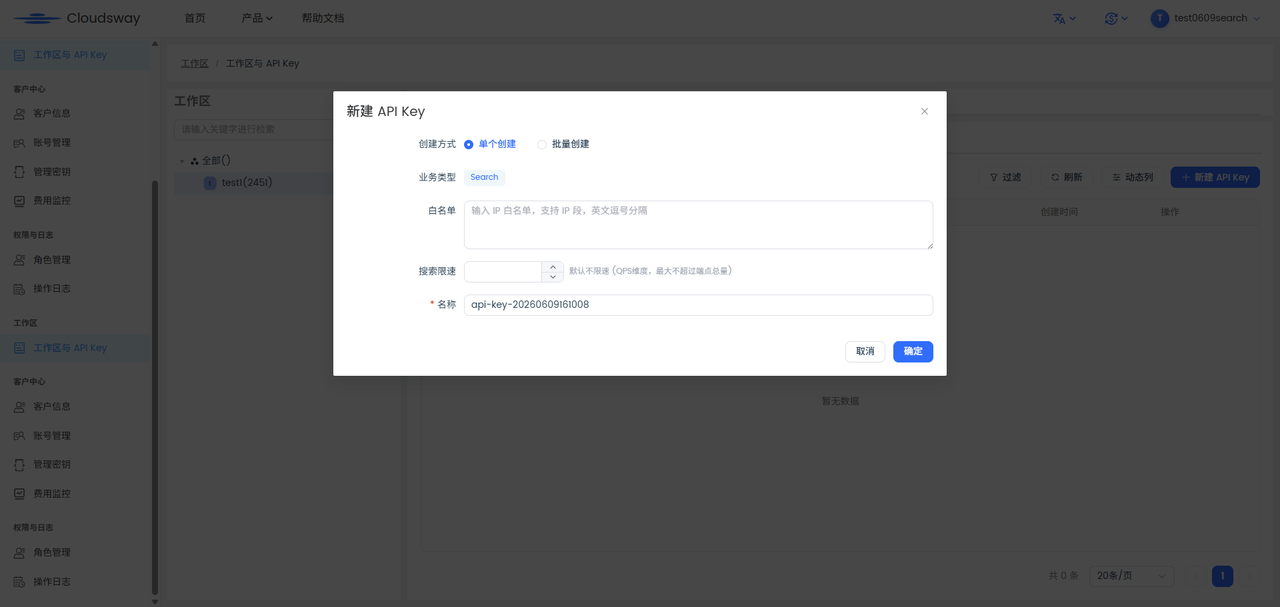
On the 【API KEY】 tab, select the 【Search】 sub-tab, and click 【New API Key】.
-
Select the "Single Creation" mode and configure the parameters:
-
Business Type: Fixed as "Search"
-
Allowlist: Fill in the IP allowlist (optional)
-
Search Rate Limit: Set the QPS upper limit (default: no rate limit)
-
Name: Custom Key Name (the system will automatically generate a default value)
-
-
Click [OK] to complete the creation.
Batch Creation
-
Select the "Batch Creation" mode and configure the parameters:
-
Business Type: Fixed as "Search"
-
Creation Quantity: Enter the number of Keys to be generated
-
Naming Rule: Fill in a prefix or multiple names (separated by commas, the number must match the number of creations)
-
Allowlist: Set a unified IP allowlist (optional)
-
Rate limit settings: You can choose "All Consistent" to uniformly set the rate limit, or "Set Individually" to separately configure the QPS limit for each Key
-
-
Click [OK] to batch generate API Keys.
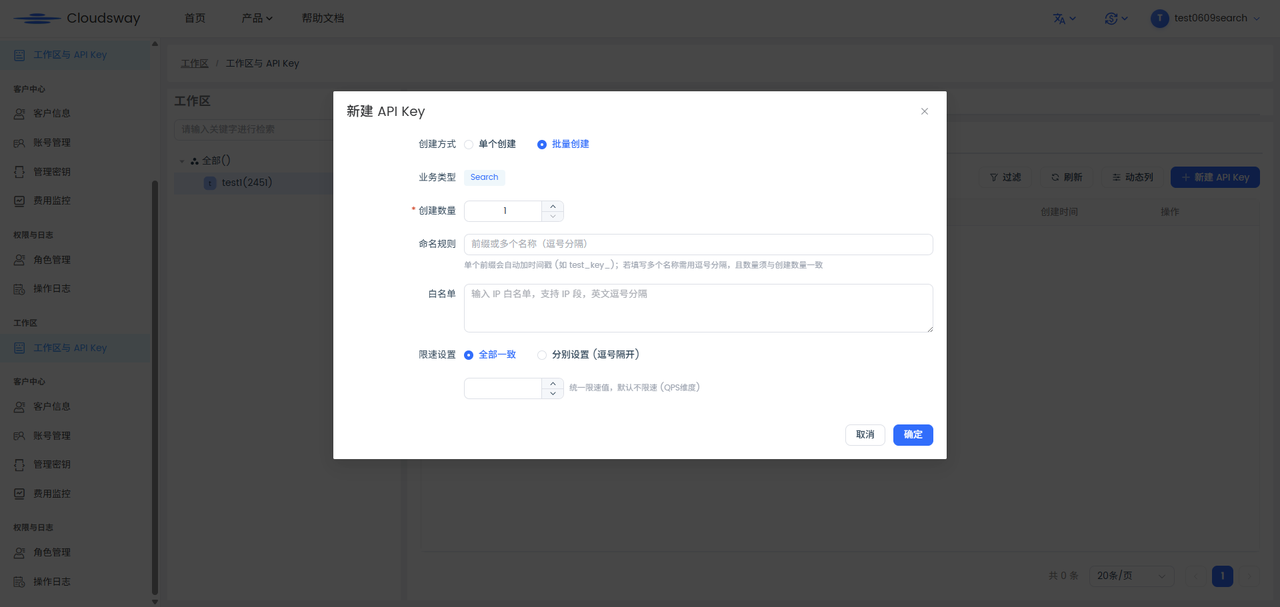
2.4 API Key List Operations
After creation, the API Key will be displayed in the list, supporting the following operations:
-
View Plaintext: Click the "Eye Icon" next to the key in the list to temporarily display the full plaintext API Key; click again to hide the key.
-
Copy Key: Click the "Copy Icon" to copy the full API Key with one click for easy direct paste and use.
-
Edit Configuration: Click the "Edit" button to modify the IP allowlist and remarks of this API Key.
-
Delete Key: Click the "Delete" button to delete this API Key.
-
Refresh and Export: Click the "Refresh" button to synchronize the latest data; "Dynamic Columns" support customizing the display fields of the list.
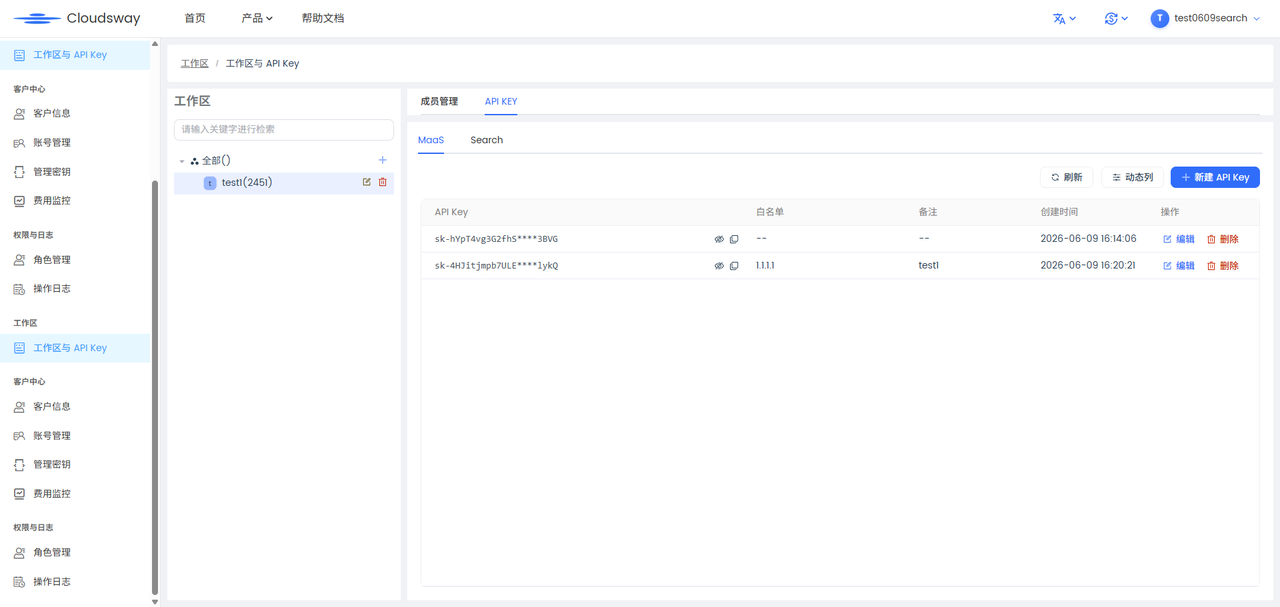
2.5 Configure API Key permissions for sub-accounts in role management
-
Enter the \<b>[Permissions and Logs]\</b> - \<b>[Role Management]\</b> page in the left sidebar, and switch to the \<b>[Role Authorization]\</b> tab.
-
Select the target role in the left role list, click the "Include Users" dropdown on the right, and select the account for which permissions need to be configured.
-
Find the [API KEY] module in the [Authorization Menu], and check the permission items to be assigned:
-
Create: New API Key
-
Update: Edit API Key
-
-
After confirming that the permission configuration is correct, the system will automatically save it, and user permissions will be the union of all role-authorized menus.
-
Supplementary Note:
- Permission control logic: The operation permissions of sub-accounts for API Keys are determined by the Create/Update permissions assigned in role management. To use them normally, users must have both workspace member permissions and API Key operation permissions.
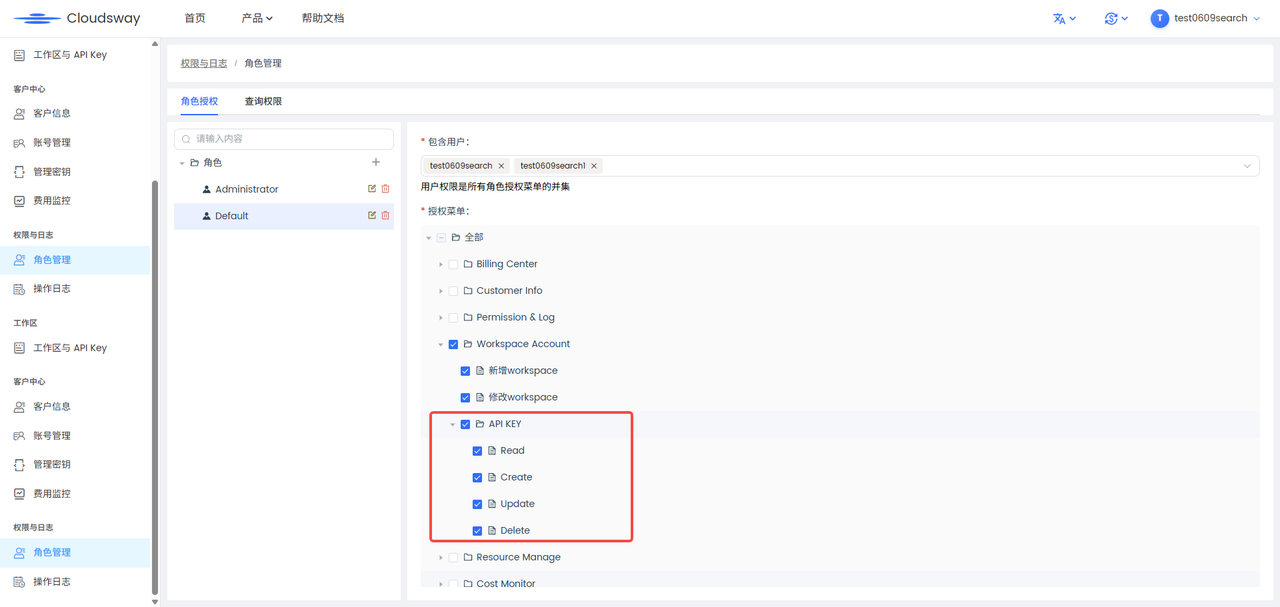
3. Sub-account Secret Access Key (AK) and Workspace API Key
3.1 Subaccount Secret Access Key (AK)
3.1.1 Core Definitions
The sub-account AK is the API call credential for the account identity, belongs to the account system, is bound one-to-one with the account, and its call permission scope is fully synchronized with the Workspace authorization scope of the associated account.
3.1.2 Core Rules
-
Ownership and Quantity : Only one set of AKs can be created per account (primary account/sub-account), and the ownership of the keys belongs to the corresponding account.
-
Permission Logic : The permissions of an AK completely follow the associated account: the account is authorized for certain Workspaces, and the AK can then call all models and resources under the corresponding Workspace; it supports authorizing multiple Workspaces for a single account, enabling a set of AKs to call resources from multiple Workspaces (workspaces).
-
Permission Management : Through the role management module, uniformly adjust the Workspace authorization of sub-accounts. After the permission change, the AK takes effect immediately without the need to replace the key.
-
Bill Aggregation: All resource usage fees generated through AK are uniformly recorded at the corresponding sub-account level, allowing bills to be split and accounted for by sub-account.
3.1.3 Applicable Scenarios
-
It is necessary to call resources across multiple Workspaces, and we hope to manage the calls uniformly through a set of keys to avoid maintaining multiple copies of keys;
-
Cost accounting is carried out by personnel and project team dimensions, with each team/member corresponding to an independent sub-account, and expenses directly allocated to the corresponding account;
-
The administrator centrally manages the call permissions across the entire platform, and can batch adjust authorizations through the sub-account permission system without the need to modify keys one by one.
3.2 Workspace API Key
3.2.1 Core Definitions
The Workspace API Key is an API call credential subordinate to the Workspace system, has no direct subordinate relationship with the account, only belongs to a single Workspace, and naturally has the call permission for all resources within that Workspace.
3.2.2 Core Rules
-
Ownership and Quantity : One API Key belongs to only one Workspace; multiple API Keys can be created under a single Workspace according to business requirements.
-
Permission Logic : The key naturally has the permission to call all models and resources under the associated Workspace, without the need for additional account authorization; the key's boundary is completely consistent with the Workspace's boundary, and it naturally cannot call resources across Workspaces.
-
Permission Management: Sub-accounts with corresponding Workspace management permissions can independently create, edit, and delete API Keys within the Workspace; other sub-accounts with permissions for this Workspace can also manage these API Keys
-
Bill Aggregation: All resource call fees generated through API Key are uniformly recorded under the dimension of the associated Workspace, and bills can be split and accounted for by Workspace.
3.2.3 Applicable Scenarios
-
Single project independent deployment requires assigning independent call keys to different business systems and different environments (testing/pre-release/production) to ensure they do not interfere with each other;
-
It has high requirements for resource isolation and data security, necessitating strict limitation of keys to access only resources within the specified Workspace and preventing cross-project calls;
-
Costs are independently accounted for by Line of Business and project dimensions, with expenses directly attributed to the corresponding Workspace, adapting to the management model of group-based, multi-Line of Business independent accounting;
-
Call keys need to be distributed to third-party partners and external systems, which can be created separately and revoked at any time without affecting other lines of business and account permissions within the Workspace.
3.3 Core Difference Comparison
| Comparison Dimension | Subaccount Secret Access Key (AK) | Workspace API Key |
|---|---|---|
| Attribution Subject | Belonging account, one-to-one bound with the account | Belongs to Workspace, with no direct subordinate relationship to the account |
| Quantity Limit | One account can only create one set of AKs | One Workspace can create multiple; a single key only belongs to one Workspace |
| Scope of Permissions | Consistent with the Workspace scope authorized by the account, supports cross-multiple Workspace calls | Only has resource permissions within the associated Workspace and is inherently unable to make cross-Workspace calls |
| Resource Isolation | There is no natural isolation boundary, and permissions are flexibly adjusted through account authorization | Natural Workspace-level strong isolation, where the key boundary is completely consistent with the resource boundary |
| Bill Aggregation Dimension | Sub-account Dimension | Workspace维度 |
| Management Subject | The main account is uniformly managed and controlled through the user management module | Any account with Workspace permissions can independently manage |
| Permission adjustment method | Adjust the Workspace authorization of the account, no need to change the key | Single key permissions cannot be adjusted individually; they need to be revoked and recreated or the Workspace resource scope adjusted. |
3.4 Selection Guide
-
If the core requirements are ** flexible cross - Workspace invocation, permission management and cost accounting by personnel/team dimensions , it is recommended to use ** sub - account AK .
-
If the core requirements are ** strong resource isolation, multi-key distribution for a single project, independent accounting by Workspace dimension, and compliance with regulatory require**